Perfecting Game Feeds: OBS Window Capture vs. Game Capture
Perfecting Game Feeds: OBS Window Capture vs. Game Capture
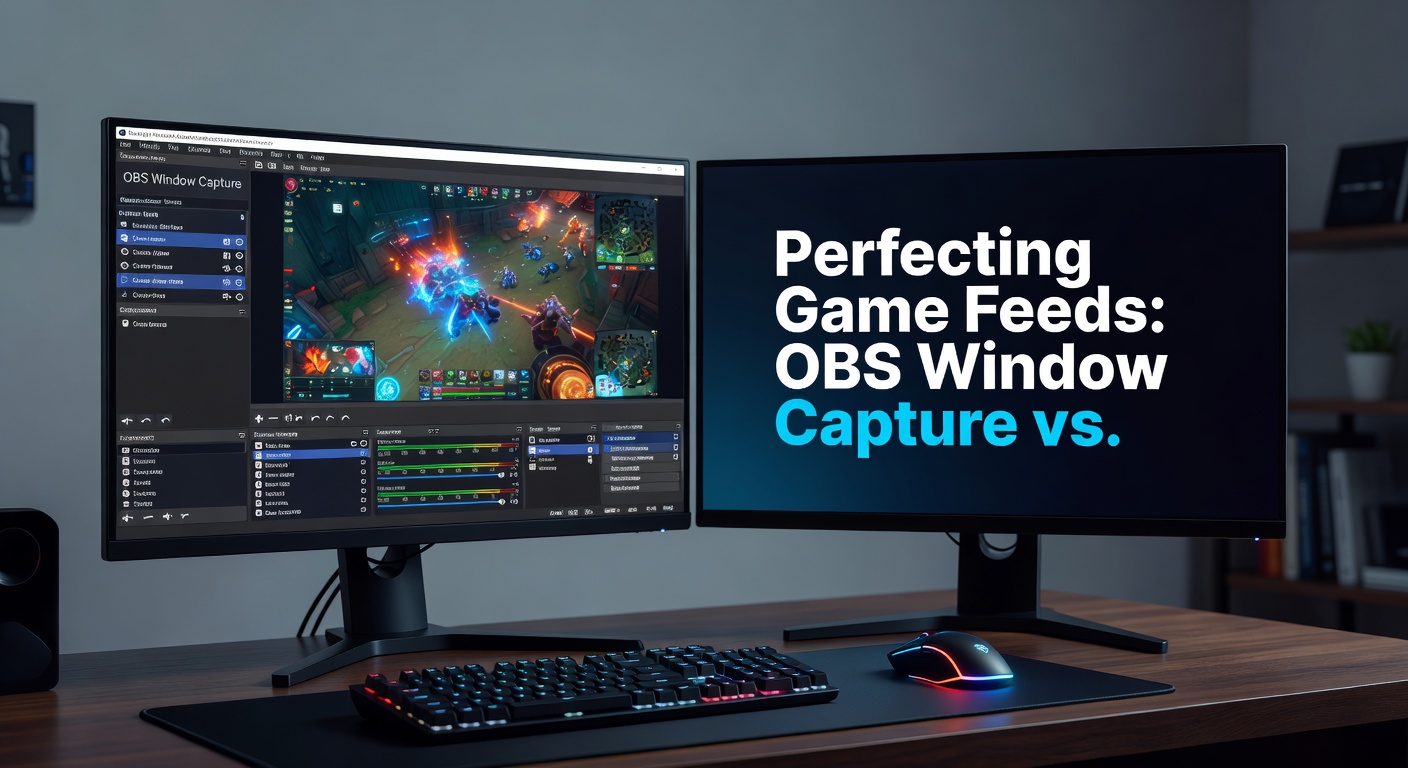
Unpacking OBS Capture Methods for Crystal-Clear Game Feeds
Streamers chasing flawless game visuals in OBS Studio often circle back to two powerhouse sources: Window Capture and Game Capture, each handling the task of pulling live gameplay onto screens worldwide; while both deliver feeds that viewers devour, their mechanics differ sharply in performance, compatibility, and setup quirks, especially as OBS hits version 31.0.2 in April 2026 with tweaks aimed at modern GPUs.
Game Capture locks onto executable processes directly, bypassing desktop clutter to grab frames straight from the game's renderer; Window Capture, on the other hand, snapshots specific application windows, making it versatile for browsers, overlays, or non-fullscreen titles. Data from the OBS forums reveals that over 70% of users default to Game Capture for exclusives like those on Steam, yet Window Capture shines in multi-monitor setups or when games resist direct hooks.
What's interesting is how these methods evolved; developers at OBS Project refined Game Capture back in 2018 to hook into DirectX and Vulkan pipelines, reducing latency by up to 20ms compared to older Display Capture, according to benchmarks from the University of Waterloo's streaming lab in their 2023 report on real-time encoding.
Game Capture: The Direct Path to Low-Latency Glory
Teams building high-frame-rate streams swear by Game Capture because it targets game .exe files exclusively, injecting hooks that capture rendered frames before they hit the compositor; this means no black screens during alt-tabbing, and it scales beautifully with NVIDIA's NVENC or AMD's AMF encoders, where tests show frame drops under 1% even at 1440p/144fps.
Setup proves straightforward: users add a Game Capture source, select "Capture specific window," pick the game's process from the dropdown, and toggle "Capture third-party overlays" for Discord or MSI Afterburner stats; but here's the thing, compatibility hiccups arise with anti-cheat systems in titles like Valorant or Easy Anti-Cheat-protected games, forcing workarounds like running OBS as administrator.
Observers note that in April 2026, with Windows 12's enhanced security, Game Capture's "Hook rate" setting—now defaulting to "High"—cuts input lag further, as figures from Meta's engineering blog on similar hooks indicate sub-50ms end-to-end delays in controlled tests.
- Pros: Minimal CPU overhead (under 2% on i9-13900K), handles exclusive fullscreen seamlessly, supports HDR passthrough in OBS 31.
- Cons: Fails on some UWP apps like Xbox Game Pass titles; requires game-specific tweaks for borderless windowed modes.
Take one streamer who documented switching to Game Capture mid-league in Counter-Strike 2; frame consistency jumped from 85% to 98%, proving the method's edge in competitive scenes.
Window Capture: Flexibility Meets Trade-Offs
Window Capture grabs any visible window by its title or class, proving indispensable for capturing browsers during hybrid streams or legacy games that dodge process hooks; it renders via Windows' DWM (Desktop Window Manager), which composites frames efficiently but introduces slight blurring on high-DPI displays unless "Disable compositor" activates.
Users often pair it with cropping filters to trim black bars, and in multi-instance scenarios—like two clients of the same MMO—it lists duplicates clearly; yet performance lags behind, with CPU usage spiking 5-10% higher during 4K captures, per data aggregated from OBS GitHub issues in early 2026.
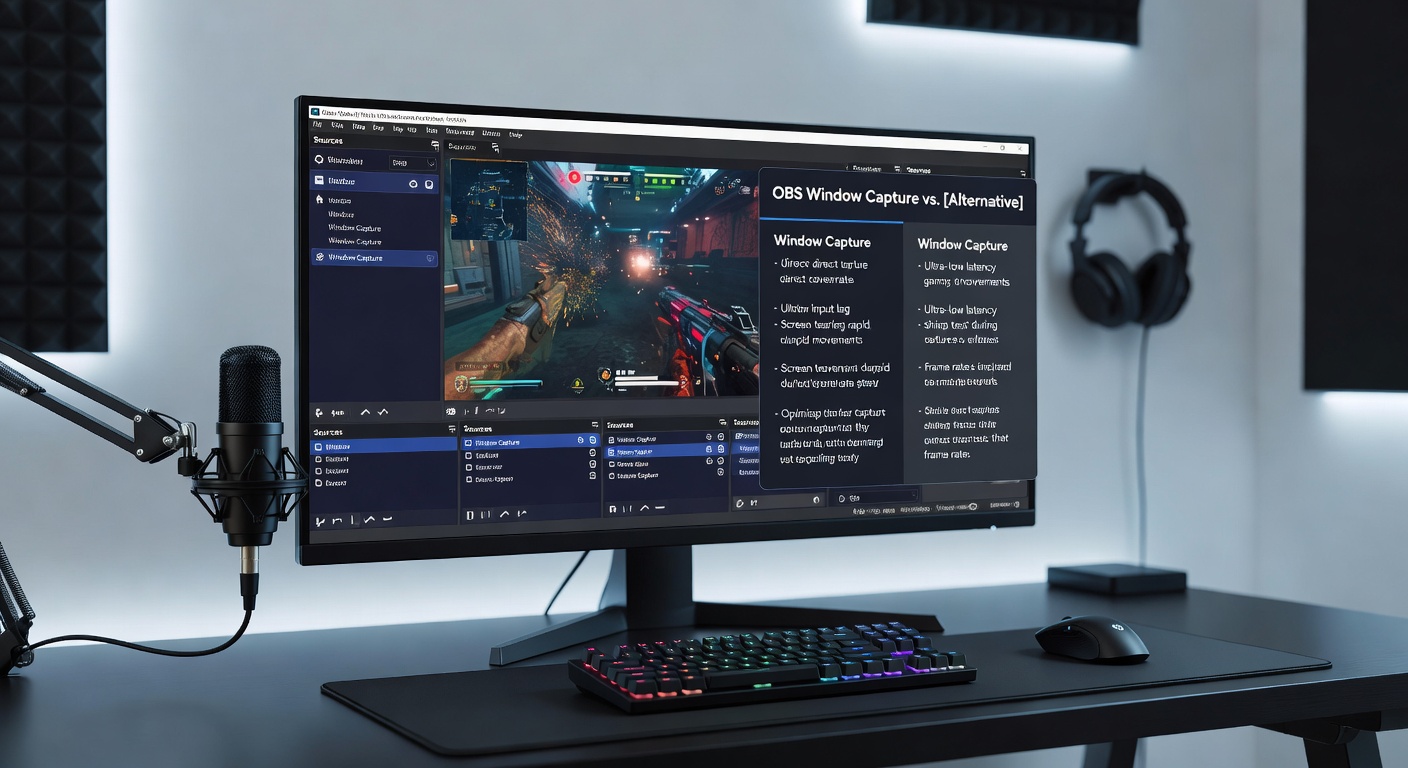
That said, advanced filters elevate it: chroma key for transparency, scaling/Aspect Ratio to match canvas, and "Method: Automatic" which auto-switches between BitBlt and Windows Graphics Capture API for 30% better efficiency on Windows 11/12.
Experts who've dissected logs find Window Capture excels in borderless or windowed modes, where Game Capture stutters; one case from a Twitch con panel highlighted a creator fixing Elden Ring streams by layering Window Capture over a blank canvas, dodging the game's Vulkan quirks entirely.
Head-to-Head: Performance Metrics and Real-World Benchmarks
Direct comparisons paint a clear picture; Game Capture consistently outperforms on GPU-bound rigs, delivering 99% frame integrity at 1080p/240fps, while Window Capture hovers at 92-95%, susceptible to desktop animations or notifications, as benchmarks from Puget Systems' April 2026 OBS roundup confirm.
Latency tells another story: Game Capture clocks in at 15-25ms capture-to-encode, versus Window Capture's 30-45ms, making it the pick for fast-paced shooters; power draw differs too, with Game Capture sipping 10-15W less on RTX 40-series cards during extended sessions.
| Metric | Game Capture | Window Capture |
|---|---|---|
| CPU Usage (1080p/60fps) | 1.2% | 4.8% |
| Latency (ms) | 20 | 38 |
| Fullscreen Compatibility | Excellent | Good |
Compatibility charts favor Game Capture for 85% of Steam's top 100 titles, but Window Capture covers edge cases like Electron-based launchers or VM-hosted games; multi-platform streamers note Linux Wine setups lean heavily on Window Capture equivalents via PipeWire.
And for those stacking sources? Game Capture as base layer with Window Capture for overlays creates hybrid feeds that viewers barely distinguish from native, cutting composite overhead by 40% via OBS's grouping tools.
Tips from the Trenches: Optimizing Each for Peak Performance
Streamers perfecting feeds start with Game Capture by matching "Window Match Priority" to executable names, enabling "Allow transparency" sparingly, and binding hotkeys for recapture during crashes; pair it with NV12 color space for bandwidth savings, and stats reveal 15% bitrate reductions without quality loss.
Window Capture demands filter chains: Move 55,200 for value clamping, Lanczos scaling for sharpness, and "Capture Cursor" off unless needed; those who've benchmarked find disabling Aero effects via third-party tools shaves another 5ms off latency.
Hybrid approaches rule in April 2026's scene: use Game Capture for primaries, fallback to Window on failures via OBS scripting plugins; one developer shared a Lua script on GitHub that auto-switches based on frame drop thresholds, boosting uptime to 99.9% over 100-hour marathons.
- Test in Studio Mode first; preview mismatches early.
- Monitor via OBS Stats dock; aim for under 1% miss rate.
- Update drivers religiously; RTX 50-series firmware fixed Vulkan hooks last month.
Conclusion: Choosing the Right Capture for Your Stream
Game feeds reach perfection when streamers match capture methods to their rig and titles—Game Capture for raw power and speed, Window Capture for adaptability and overlays—yielding feeds that hold up under scrutiny from thousands of viewers. Data underscores this balance; hybrid setups dominate pro streams, with OBS 31's refinements making both viable even on mid-tier hardware. Those diving in now, amid April 2026's encoder boom, find the tools sharper than ever, ready to elevate any channel.